OUTSTANDING TINY DESK AI / MAKING YOUR VIDEO
How to Create a Five-Person Tiny Desk AI Concert
Your Outstanding Tiny Desk AI walkthrough: assign five portraits, check the AI first frame, then create a 15-second 720p concert video.
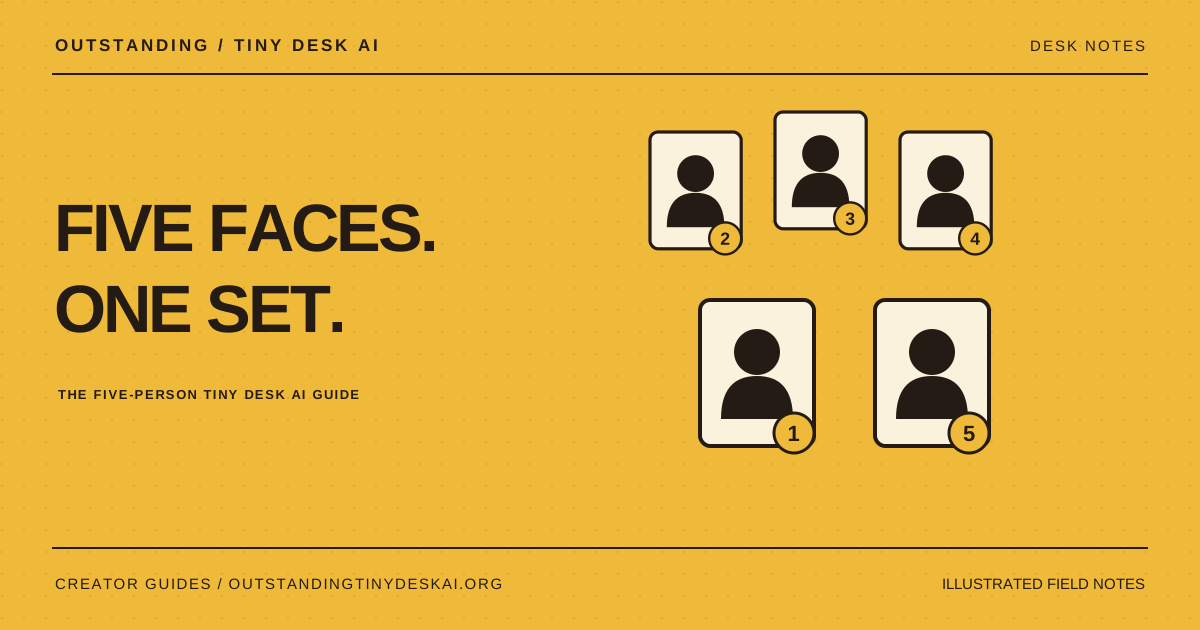
Start with five clear adult portraits. Outstanding Tiny Desk AI uses 10 credits to create an AI first frame, then 90 credits to make the 720p video after you approve it.
Prepare five portraits for your Tiny Desk AI cast
A five-person Tiny Desk AI concert works best as a small casting project. Ask each person for a clear, recent portrait with a visible face, then decide who belongs in each named role. Use photos of consenting adults that you have permission to upload and transform.
Outstanding Tiny Desk AI accepts JPG, PNG and WebP images up to 5 MB. Each side must be between 301 and 5,999 pixels, and the image cannot be extremely wide or tall. A sharp original photo is a better starting point than a screenshot from a group chat. Keep the eyes, hairline and jaw visible.
Match each portrait to its Tiny Desk AI role
Open The whole band in the Outstanding Tiny Desk AI studio. Upload one portrait into each of the five named slots. The role positions refer to the opening reference frame; they do not promise a fixed position throughout every moment of the finished video.
Check the role labels before continuing. Swapping two uploads changes your intended cast assignment. The free photo-framing view shows cropped portraits in your browser, so it is useful for checking that you selected the right files. It is not an AI-generated concert preview.
Review your AI first frame before the video starts
Sign in, make sure your account has enough credits, and confirm permission from everyone in the cast. Creating the Tiny Desk AI first frame costs 10 credits. When the image is ready, open it at a useful size and compare every person with the uploaded portraits.
Check the lead singer first, then work across the remaining faces. Look at face shape, hair, glasses, missing people and duplicated faces. A first frame gives you a chance to inspect the starting composition; it cannot guarantee that every face or movement will stay identical throughout the AI concert video.
Only approve a frame you want to use. A ready frame can be confirmed within 24 hours. Making an additional first frame costs another 10 credits, and a successful first frame remains paid if you decide to stop.
Generate your 15-second 720p Tiny Desk AI video
After checking the first frame, tick the approval and permission boxes and confirm the video. Outstanding Tiny Desk AI then uses 90 video credits. One successful first frame plus one video therefore uses 100 credits in total.
Follow the job in My videos. The current five-person concert is a 15-second, vertical 9:16, 720p MP4 with sound. Generation time can vary; if a status is uncertain, check the existing job before starting a new one. Repeated submissions are not a useful way to speed up a render.
Check the full AI concert video, then download
Watch the complete video with sound before sharing it. Review faces during turns, the lead performance, hands and the ending. Download a copy from My videos and keep your own backup. Completed videos are saved privately in your account until you delete them.
A confirmed failed first-frame step returns its 10 credits. If the video step fails after a successful frame, only the 90 video credits are returned. Uncertain provider responses need review first. Contact support with the existing job or first-frame ID when a result needs investigation.
A product guide from Outstanding Tiny Desk AI. Illustrations explain the workflow; they are not generated customer results. Product details checked against the current website on October 27, 2026.